
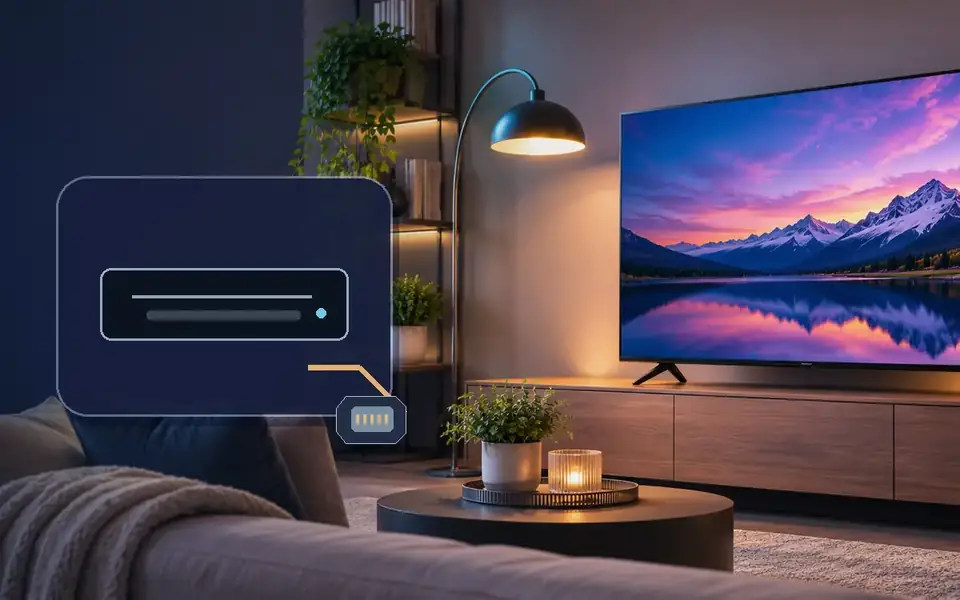
Choose the connection you actually have.
- HDMI on both devices
- One HDMI cable carries picture and sound. Connect OUT on the player to IN on the TV and note the input number.
- Matching analog sockets
- Composite uses yellow video plus red and white audio. Component uses green, blue and red video plus a separate audio pair.
- Analog player, HDMI-only TV
- Use an active converter designed for the player's output going to HDMI. A passive plug adapter cannot perform that conversion.
Connect, select and test in five steps.
Read the labels before buying a cable
Look at the player's outputs and the TV's inputs with both devices switched off. A USB socket is not a substitute for an HDMI input. If the TV uses a small AV adapter jack, consult its manual for the correct breakout adapter and pin arrangement. Similar-looking adapters are not automatically interchangeable.
Make the video and audio connections
For HDMI, connect the player directly to a free TV HDMI input. For composite, match yellow video and the red and white audio channels. For component, match Y, Pb and Pr separately from red and white audio. Do not confuse the red video connector with the red audio connector.
Set up any required converter
For an analog-only player and HDMI-only TV, connect the player to the converter's analog inputs, then its HDMI output to the television. Attach the converter's specified power supply. Check the supported video standard and signal direction. An HDMI-to-composite unit performs the opposite job.
Choose the exact TV input
Power on the player and television. Use Source or Input on the TV remote to select the socket you used, such as HDMI 2 or AV. Open the player's setup menu first. Seeing that menu confirms the connection works even before a disc is inserted.
Test a known working disc
Insert a compatible disc and check both picture and sound. If the menu appears but the disc will not play, investigate the disc format, region or condition before replacing cables. Start with TV speakers to simplify sound checks, then reconnect any external audio system once playback works.
Find the symptom. Check the cause.
No signal or a blank screen
Check that the player is powered on, the cable uses an output on the player and the TV is on the matching input. Reseat the cable with equipment off. If a converter is involved, check its power and direction. Test a direct connection wherever possible.
Picture but no sound
For analog connections, check the separate red and white audio pair and the matching TV input group. For HDMI, check mute and the TV's selected sound output. If the TV cannot decode the player's selected audio format, consult the player manual for an appropriate PCM setting.
Black-and-white, distorted or stretched video
Recheck composite versus component sockets and any adapter pinout. Match a converter's supported video standard to the player and TV. For a stretched film, check aspect-ratio settings. A 4:3 title may correctly have side borders rather than filling a widescreen display.
What the connection can and cannot improve.
An HDMI connection can simplify the wiring, but it does not turn a DVD into a native 4K source. An upscaling player or television can resize the picture for its panel. It cannot restore detail that was never on the disc. Choose a clean, compatible connection before paying for claims about cable picture enhancement.
A DVD player also does not become a Blu-ray player by changing the cable. Disc support belongs to the player. If you are considering a television with its own disc mechanism instead, compare the exact disc compatibility in our TV and DVD combo guide.
Checks that make this work.
Choose the direction before buying an adapter
A cable only joins compatible signals; it does not perform analog-to-digital conversion. If the player has yellow composite video and the TV has only HDMI, look for a powered converter that accepts composite input and provides HDMI output. Check the product diagram and the video standard it supports. A device advertised as HDMI-to-AV works in the opposite direction. Match the player's red and white audio to the same converter, then select the HDMI input on the TV. If both devices have HDMI, start with one direct cable and avoid adding a converter that is not needed.
Use the player's menu as a test
Power on the player without a disc and look for its setup screen on the selected input. If the menu appears, the basic video route works. Then test a known working DVD and listen through the TV speakers before connecting an external sound system. A picture with no audio may indicate that the analog audio pair is missing or that the TV is using another sound output. A disc error after the menu appears points to playback compatibility or disc condition, rather than proof that the cable is faulty. Keep troubleshooting one link in the chain at a time.
Check the exact model documentation
Panasonic's connection guide shows examples of HDMI, component and composite wiring. StarTech's converter data sheet illustrates an active analog-to-HDMI product and its supported inputs. These examples do not guarantee that every player, adapter or TV has the same sockets. Confirm the labels and manual for your own models, including any proprietary TV AV adapter. If a converter requires power, use the specified supply. A clean standard-definition signal is the realistic target; a new cable cannot add detail absent from the DVD.
Model-aware instructions.
This guide is based on manufacturer and platform support material reviewed on November 4, 2026. We distinguish common steps from model-specific requirements and link relevant official guidance in the FAQs.
Menu names, app interfaces and supported features can change. Use the manual for your exact model when it differs from a general procedure. This is researched guidance, not a claim that we tested every television, app or accessory described.
A little more clarity.
Which connection should I use for a DVD player?
Use HDMI when the player and TV both provide it. It carries video and audio together and avoids the separate analog sound cables. If HDMI is unavailable, match the documented outputs and inputs. Panasonic's DVD connection guide illustrates the three common connection types.
Can I connect red, white and yellow plugs to HDMI?
Yes, with an active composite-to-HDMI converter that accepts the analog picture and stereo sound and outputs HDMI. Check its power requirements and supported video standard. A cable that merely changes connector shapes cannot convert the analog video signal into the digital signal an HDMI input expects.
Why are there two red plugs on a component cable set?
One red plug carries the Pr video signal and the other carries right-channel audio. Green and blue complete the component video set, while white carries left-channel audio. Follow the labels and grouping on the sockets rather than matching red plugs by color alone.
Can I use the TV USB port for the DVD player?
Not as a general replacement for HDMI or analog video. A TV USB port may support files on compatible storage or power certain accessories, but that does not make it a DVD-player video input. Check both device manuals for an explicitly supported connection before attempting it.
Why does the player menu work but the disc does not?
The menu proves that a video signal can reach the TV, so focus next on the disc and player. Check the supported disc format and region, try another known working disc and inspect for damage. A different HDMI cable will not make an unsupported disc format playable.
Will an HDMI converter make my DVDs high definition?
A converter may scale the output to a resolution the TV accepts, but the original DVD detail remains limited by the source. Check the converter's supported inputs, power and output modes. StarTech's composite-to-HDMI documentation is an example of a device designed for this direction of conversion.
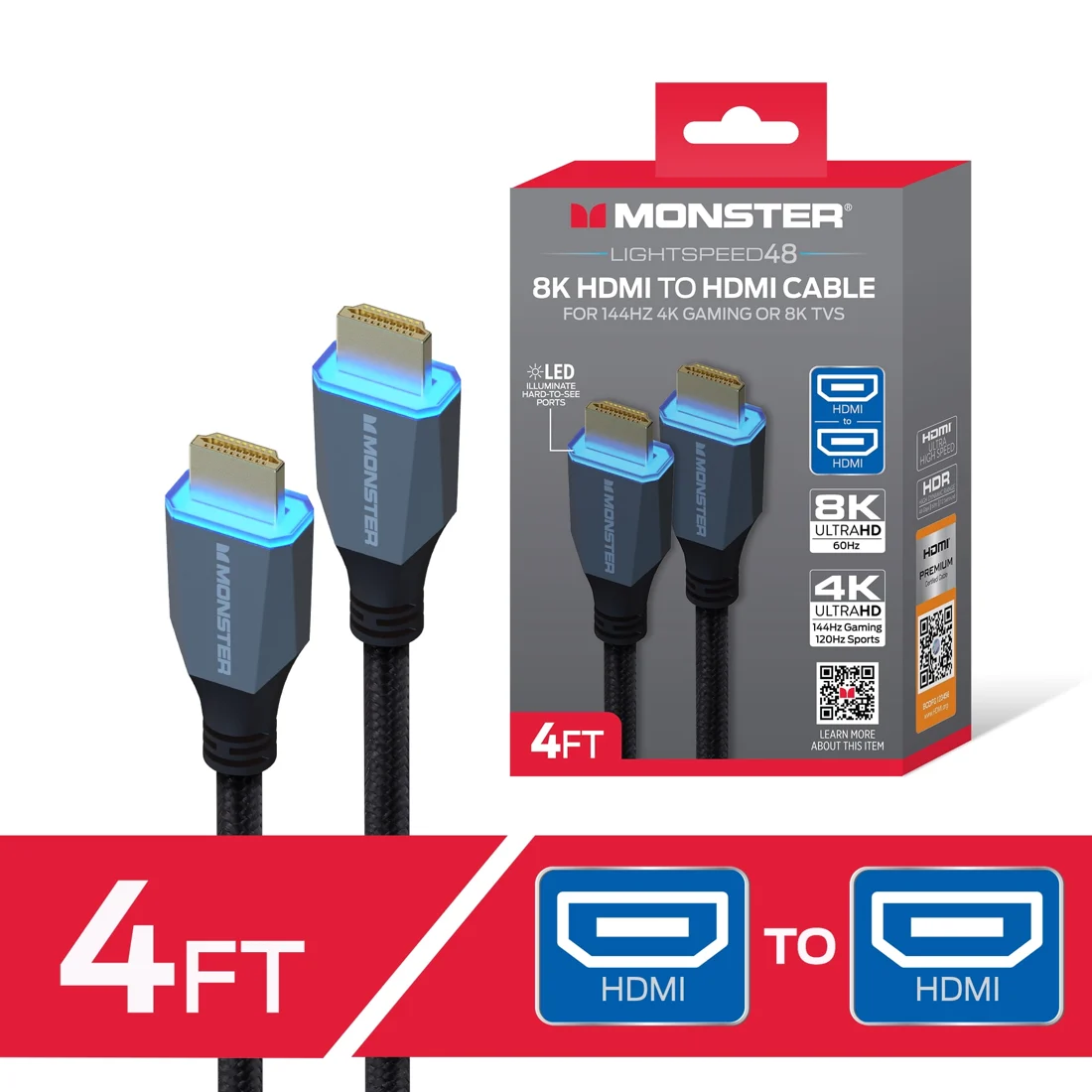 Compare HDMI cables
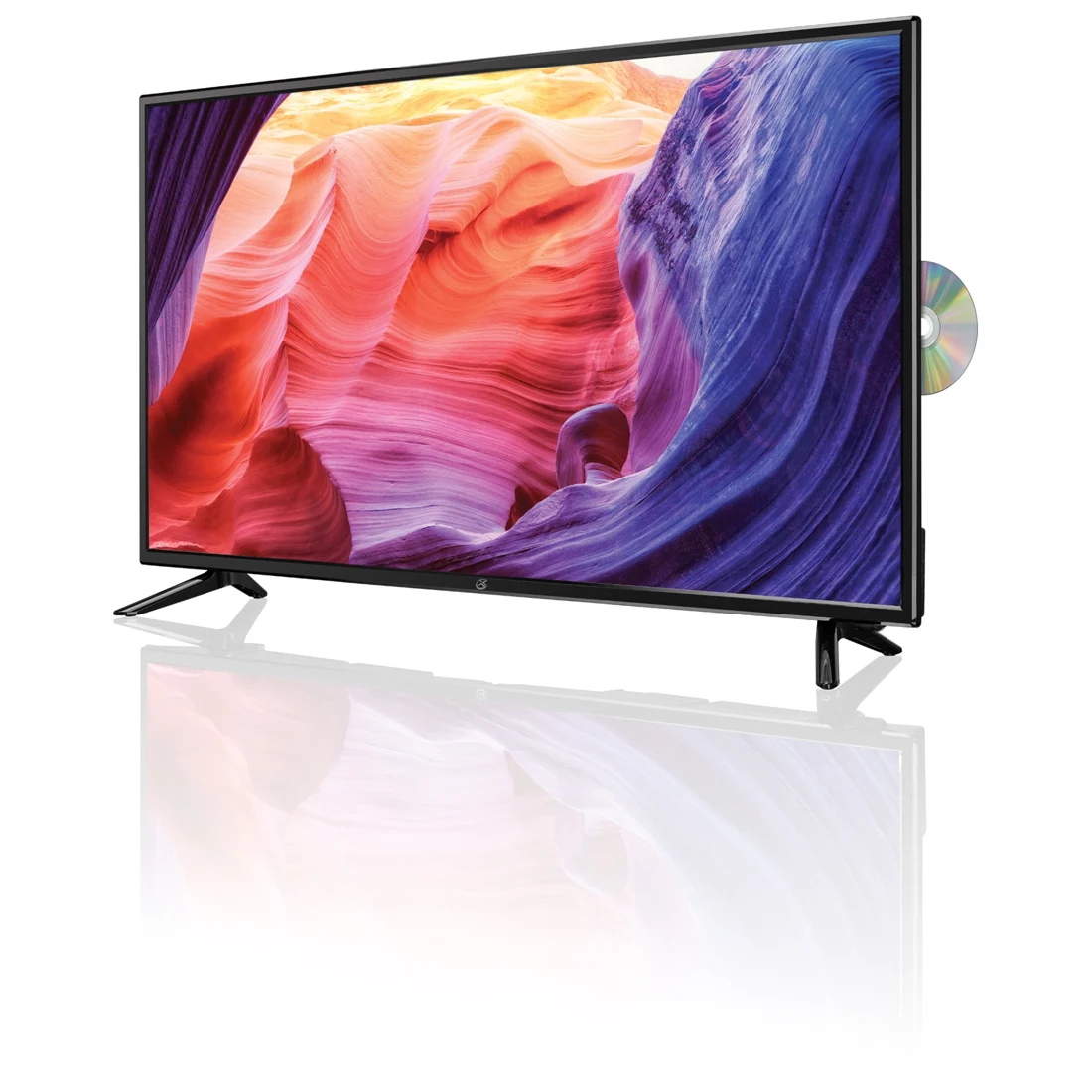 Explore TV and DVD combos
 Find the right remote app